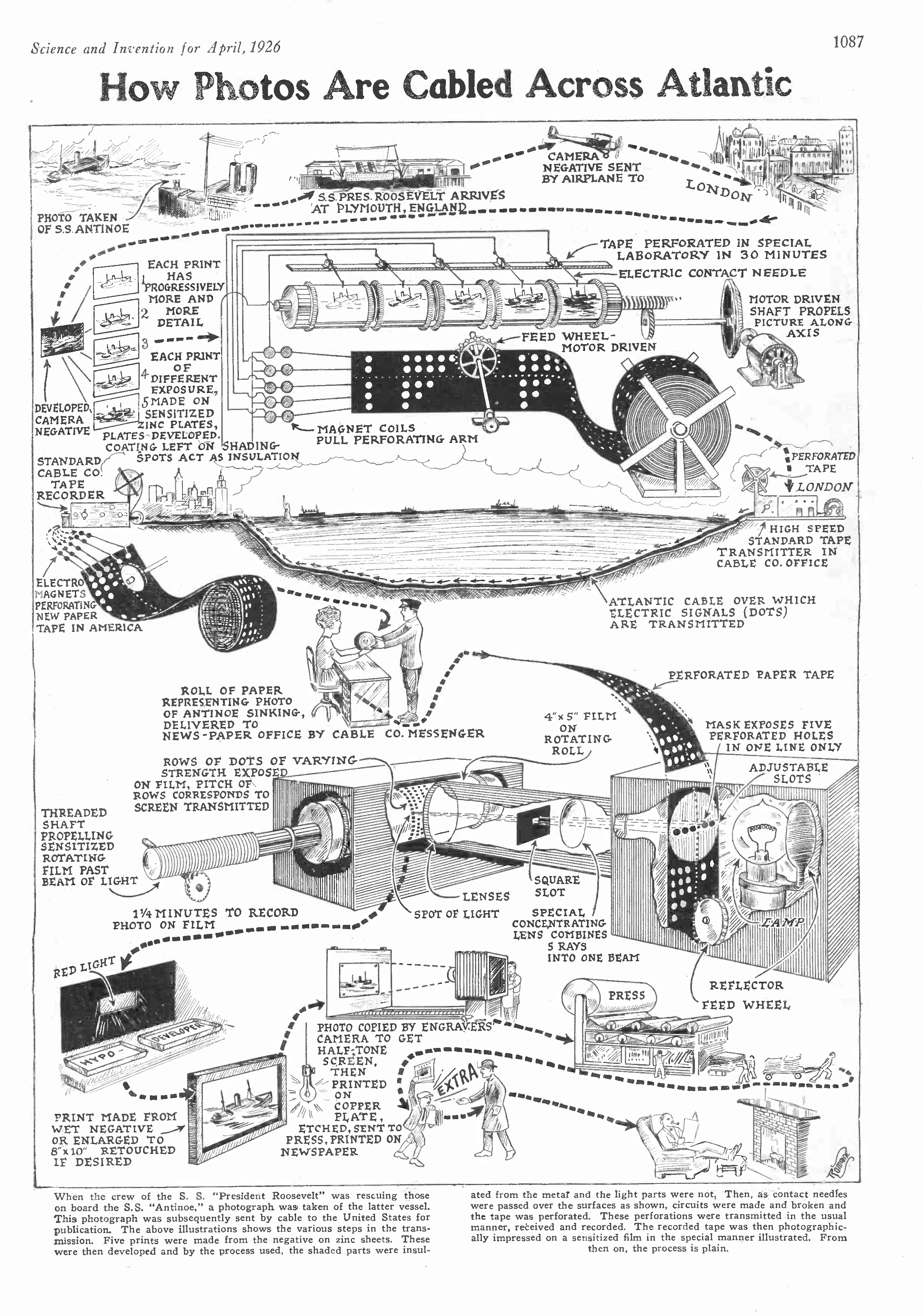

A few weeks ago I rage-coded a fax app (promptfax.app) after I was forced to send a fax again for the first time in a decade. I did not want to deal with sending a one-off fax, so like I often do with stasks I don’t want to deal with — I asked chatGPT and Claude to do it for me. Sadly, neither of them could send my fax on their own. The advice they gave me for how to do it was far less than ideal.
Agents can code complex apps in minutes, yet they can’t send a simple fax? How could this be? This set me off down a rabbit hole exploring how AI agents should implement a simple use case like this. There are so many ways to let an LLM interact with your app and do stuff—MCP, connectors, AI browsers, AI browser extensions, computer use, WebMCP… What is a web app supposed to do to help here? Are all of these needed? Which is best?
To answer these questions, I ended up making a simple web app aimed at humans. I then started looking into every option reasonably available to let an agent interact with my app. The landscape of options was way larger than I had previously thought about. There are big choices in how much control you want some external LLM agent to have vs. your own app. Some approaches are standardized, or on their way to be standardized. Others are only applicable to a single LLM vendor (i.e., OpenAI). The matrix below gives a starting summary.
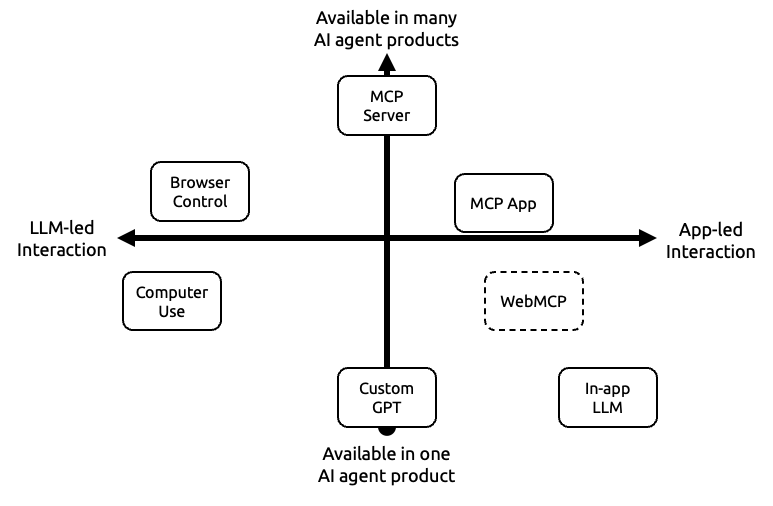
I tested and/or implemented all of these. My learnings are outlined below. Given the limited scope of faxing, my focus was on general AI interaction with web apps. These mechanisms and interactions are not at all specific to my app, so I hope you find it helpful for your app.
Contents
Agent to App interaction mechanisms
Add an LLM to the app
Shoving an LLM chatbox onto the page is a very common approach and is where I started. Most of the time embedded website chat agents are hooked into some Retrieval-Augmented Generation (RAG) system to answer questions. Answering questions is easy. Having them execute actions is more complex. If your app is relatively simple and built with the right abstractions, it shouldn’t be too hard to map your internal API functions to LLM tools. Then the LLM can invoke those tools as needed.
My first thought was, why not just expose a chatbox and skip the tedious work of building a GUI altogether? I really like how apps like lovable.dev just give you a prompt and let you build things. It turns out that a text prompt is a horrible user interface for doing most simple things. There is a reason personal computers stopped booting to a prompt decades ago. In my case, the simple steps of adding a document, a phone number, and providing a quote via chat were way more tedious than just making a couple of clicks.
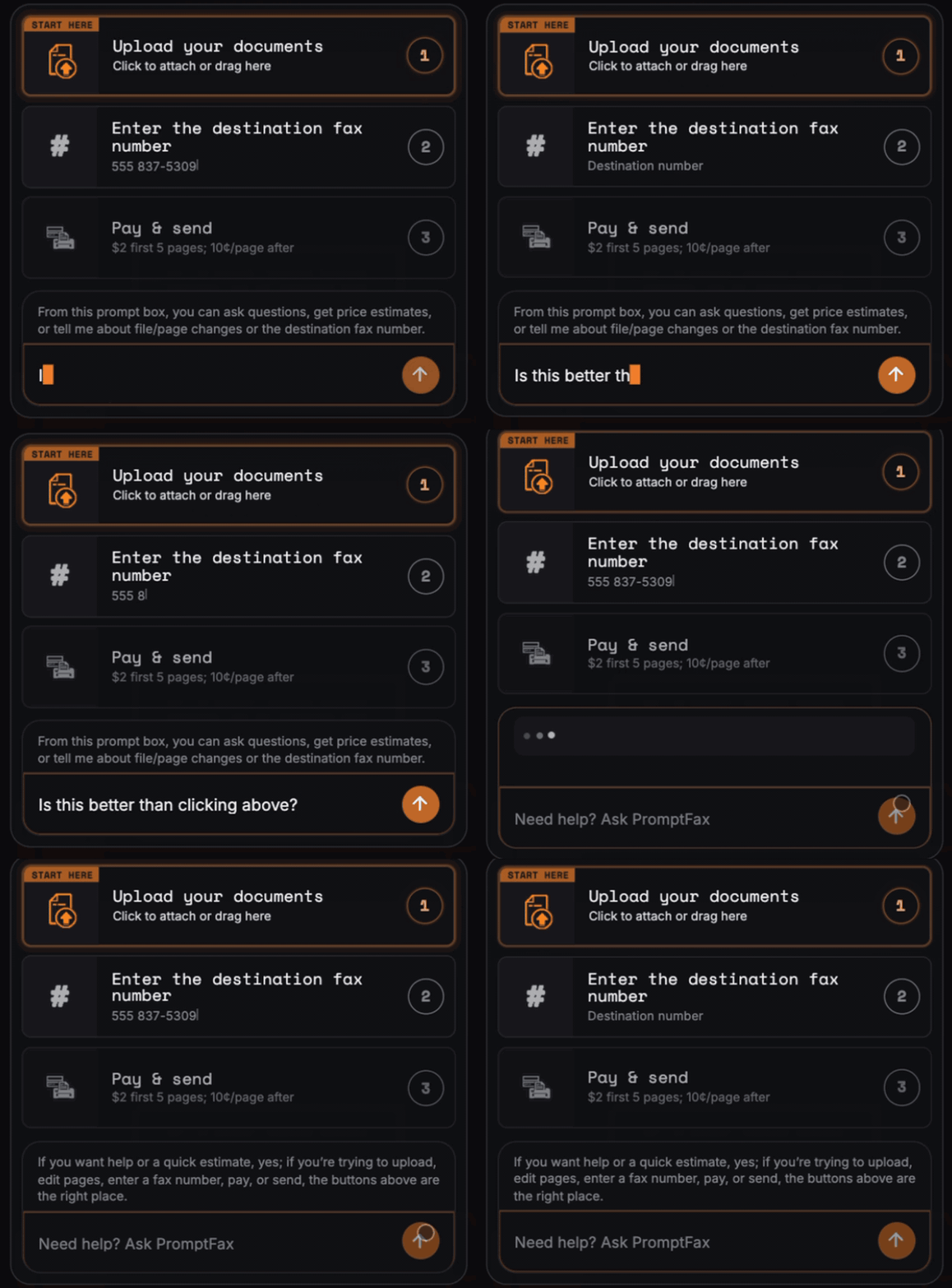
If your UX is good, the user shouldn’t need to ask questions or type what they need to do. I kept the in-app LLM for anyone who wants to use it (one so far), but demoted its prominence.
In-app LLM — an app-owned chat and tool interface | |
Primary user interface: the app | |
Pros | Cons |
|---|---|
|
|
Computer Use
Computer use is a broad capability that lets the LLM see and interact with the computer using screen grabs and OS-level accessibility features. Both Claude and ChatGPT have forms of Computer Use in their desktop apps.
In theory these can do anything the user can do. It is rarely faster than operating the desktop yourself. The agent needs to do continual screen grabs, interpret those screens, then move and click. Those iterations take a lot of time—and tokens.
Generating training data must be tough here vs. scraping the Internet. I am sure the frontier model vendors have farms of people clicking through apps to train these models, but there is a massive amount of visual variety to consider. This will certainly get better, but it does not seem like an efficient way for a machine to control another machine.
There are required OS-level permissions to consider which could easily scare or confuse customers:
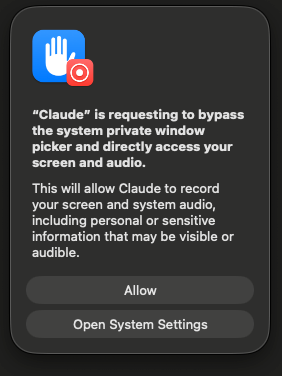
Not much we can do to help AI Agents here
There isn’t much an app can do to specifically help the LLM in this situation. Perhaps other than running a CAPTCHA or using Cloudflare’s bot tools, there is no great way to detect if the user is an LLM. If the app is simple enough for users, hopefully it is simple enough for the LLM to interact with at a reasonable speed.
Computer use — the agent operates the user's desktop visually | |
Primary user interface: the LLM agent, acting through the normal desktop UI | |
Pros | Cons |
|---|---|
|
|
AI Browser Control
Computer Use works at the OS level. There are also a number of approaches that let the LLM interact with the browser directly:
- Dedicated browser - OpenAI
hashad its own Chrome-fork called Atlas. This is now built into its Desktop App like Claude does. - Chrome extension — Codex and Claude have Chrome extensions.
- Hosted virtual browser — ChatGPT’s Agent mode renders a restricted Chrome browser in the cloud with an added extension
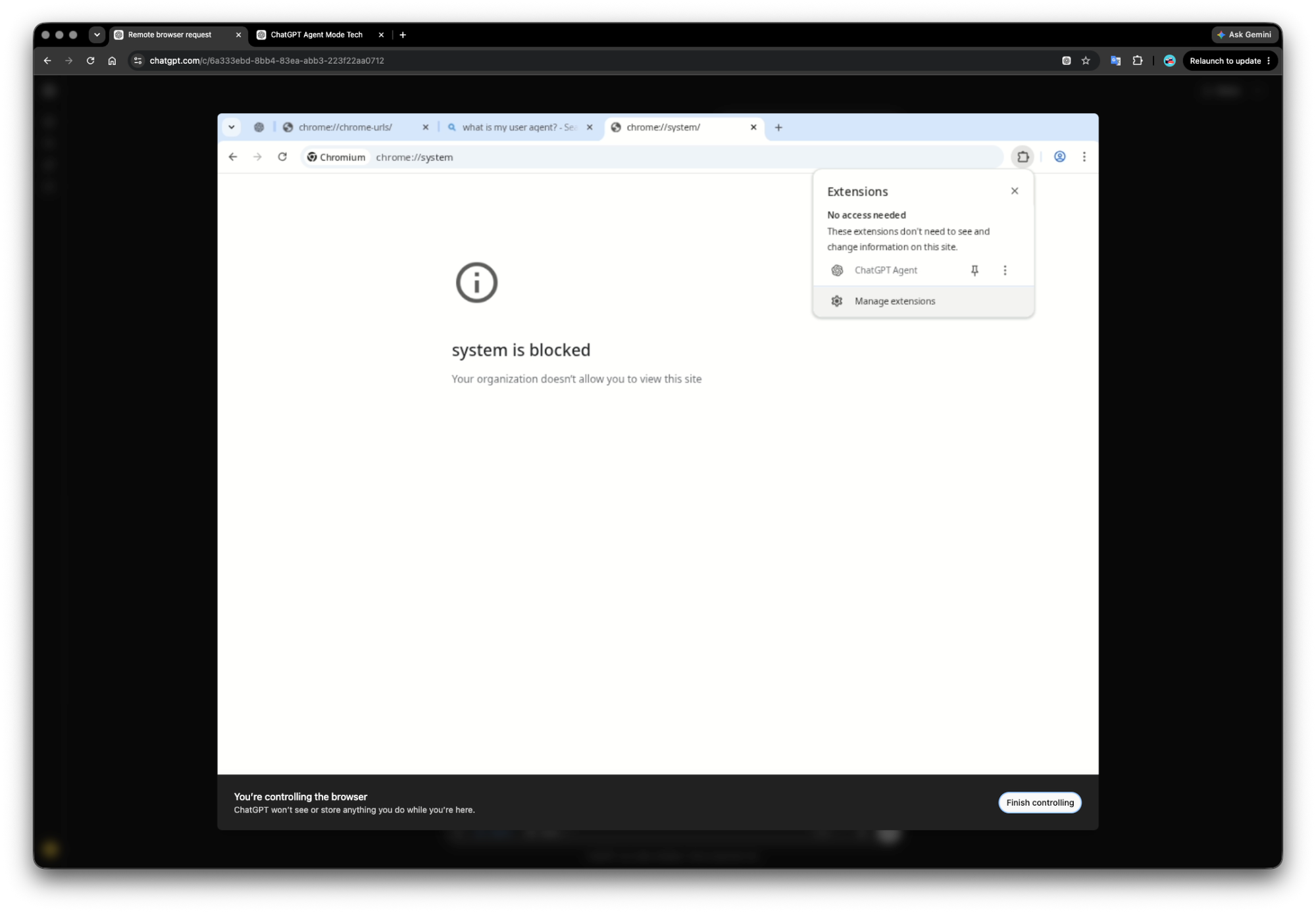
The main advantage of this over Computer Use is that it can see and execute web-page code directly. Consuming a relatively small amount of text tokens is very efficient compared to interpreting images, especially when most of what is on the screen often is not immediately relevant to the task at hand. Unlike computer use, this is strictly limited to the browser, so it can’t help you with native desktop or mobile apps.
I have had decent success having AI browser control fill out long forms in the background. However, I often see it get confused on more complex UI interactions. Parsing the website’s DOM and code and iterating through many interactions can still consume a lot of tokens.
Detecting and adapting to AI Agents isn’t easy
I spent a little bit of time exploring if I could detect if an LLM was controlling the browser. If I could tell if it is a robot visiting, then I could render a simpler—if uglier—agent-optimized app. Unfortunately there is no great universal way to detect robot visitors. Extensions remain hidden from apps unless they want to be exposed. I did find ChatGPT’s Agent remote browser does expose a Signature-Agent header, so that could possibly be used if you wanted to go down the route of an agent-specific page.
One advantage of exposing the DOM is that it can contain more information than appears visually on the page. Some of the machine-readable context I added for Generative Engine Optimization (GEO) could, in theory, provide additional guidance to an agent that inspects the page or follows the linked resources. Good accessibility practices should also help: descriptive ARIA labels and semantic fields such as type="tel" and aria-label="Fax destination" make the purpose of controls clearer to both assistive technologies and DOM-reading agents. My app is simple enough that I did not see much room for further optimization.
AI browser control — the agent operates a website through the browser | |
Primary user interface: the browser plus an agent window or side panel | |
Pros | Cons |
|---|---|
|
|
MCP Server
Model Context Protocol (MCP) is a standard way for an AI application to connect to external tools and data. The official MCP specification describes a client-server model where the host is the LLM application, the client manages the connection, and the server provides capabilities such as tools, resources, and prompts.
From the app developer’s perspective, this means your app can expose a machine-readable interface for the LLM to use. Instead of asking an agent to visually click through your website, the LLM can discover a set of explicit tools and call them with structured parameters. For example, my fax app exposes functions like start_session, attach_document, get_quote, etc.
This is much more efficient than Computer Use or browser control. The model does not need to interpret screenshots, inspect the DOM, or guess which button to click. The app tells the model what actions are possible and what parameters are required.
The downside is that a traditional MCP server is an interface for machines with no user interface. It works well when the model needs to retrieve information or execute a clear action. If the required flow is less clear and requires several MCP tools, then the risk of the LLM messing something up increases. Fortunately this is fine for my simple fax application.
There is also a discovery problem for most users. Developers and power users can add a custom MCP server URL, but that is too much friction for many casual users. Directories, app stores, and host LLM app recommendations may help, but a new or niche app should not assume users will find and configure its MCP server on their own.
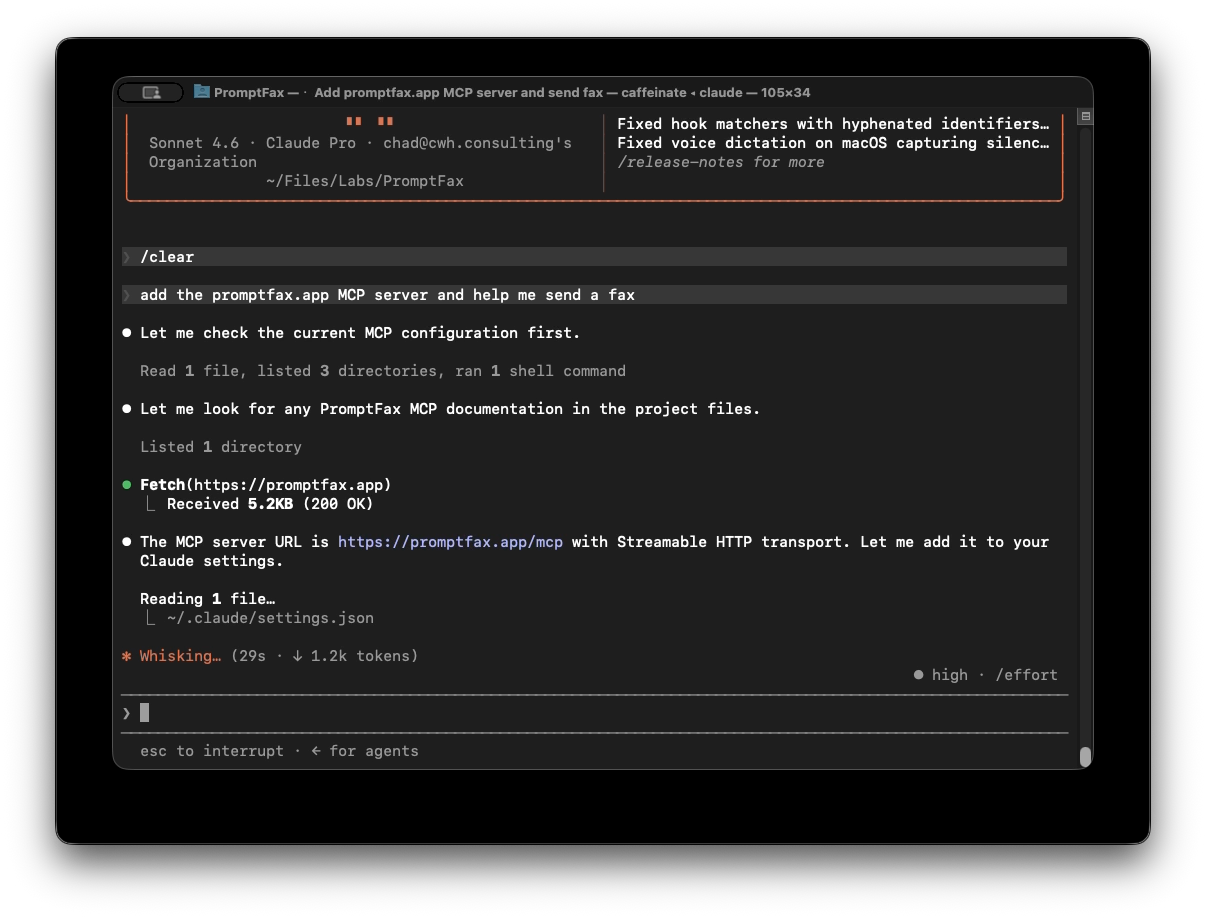
MCP is easy for developers
Adding an MCP server was easy for me. If your app already has a clean API, building an MCP server is often straightforward. The main work is deciding which capabilities should become tools, how those tools should be described, what authentication is needed, and how much state the server should expose back to the model.
The most important design choice is tool shape. Do not just expose every internal API endpoint. Think in terms of the typical workflows the LLM agent should execute and bundle those into MCP tools. The model should not have to assemble a dozen low-level API calls if the app already understands the workflow.
MCP Server — structured tools and data for MCP-capable hosts | |
Primary user interface: the LLM host's chat interface | |
Pros | Cons |
|---|---|
|
|
MCP Apps
I ran into the same issue with the MCP server that I originally had with my LLM prompt-driven web application. For my use case, it is much easier for a user to click through a few controls than engage in a multi-turn chat interaction. The MCP server just replicates that prompt-only interface inside the LLM where the app has no real control beyond the tools it exposes.
Fortunately a solution for this exists: MCP Apps. The MCP project introduced this as the MCP Apps Extension. MCP Apps start with an MCP server, but add user interface elements implemented as web widgets that are rendered inside the LLM host (Claude, ChatGPT, etc.).
The motivation for this is simple: not every app interaction should be reduced to text. As I discovered with my in-app Agent attempt, some tasks are just better executed with simple GUI controls like buttons, previews, forms, tables, etc. Without a UI layer, the model either has to describe everything in chat or the host has to invent its own way to render each tool result. That does not scale well.
MCP’s SEP-1865 standardizes this. A server can declare UI resources and link them to tools. The host can render those resources in a sandboxed iframe and let the UI communicate with the host using structured messages. In plain English: the LLM can still reason and call tools, but the user can interact with an actual app surface when that is better than typing back and forth.
The important caveat is that MCP App support is not as universal as MCP server support. ChatGPT has its Apps SDK and supports MCP Apps-style embedded UIs. Claude has Connectors and also supports interactive connector experiences in some contexts. Other MCP clients may only support text and tool calls. That means an app should treat MCP Apps as progressive enhancement, not as a replacement for an MCP server.
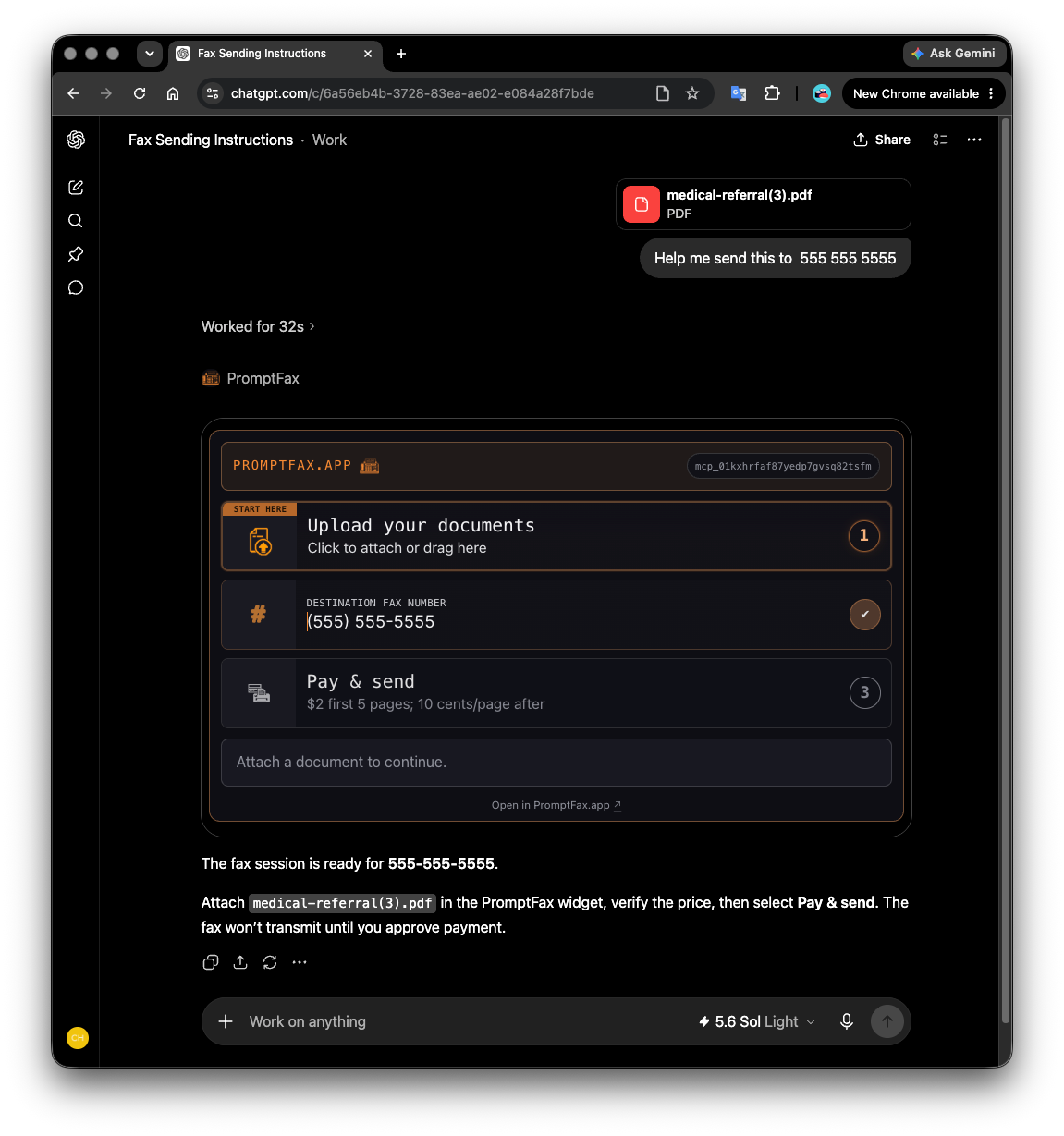
Implementing the MCP App ✕ 3
My app evolved exactly as I outlined above, so I already had a basic UI for users and a remote MCP server. So to build this, I had to adapt my UI to a widget that fit ChatGPT’s App specs. Then I had to adapt it again to work for Claude’s MCP connector behavior. Finally, I adapted it again to fit the generic MCP Apps model as described by the SEP-1865 spec. It sounds like a lot of work, but it was fast to vibe code the first iteration after I better abstracted my front end.
Handling MCP App failures did introduce some architectural challenges. For example, if a user has a file they want to use in their context history, the LLM should attempt to attach it. Unfortunately the LLM hosts do not have a reliable mechanism for uploading files to external services (ChatGPT is currently better than Claude here). If the LLM is unable to attach a file, I still need a fallback mechanism—which for me is the normal web app. To prevent users from having to completely start over, I had to share state between the MCP server, widget, and my web app. This made everything much more complex, which necessitated more testing. Then, setting up automated tests to install and use the MCP App inside ChatGPT and Claude chewed up a lot of time.
MCP Apps — an interactive app surface backed by MCP | |
Primary user interface: LLM chat plus an app-owned embedded widget | |
Pros | Cons |
|---|---|
|
|
WebMCP
MCP and MCP Apps assume the user starts inside an MCP client like ChatGPT, Claude, Cursor, etc. WebMCP flips that around.
MCP offers server-side APIs. MCP Apps need server-hosted web widgets. WebMCP is a different approach that doesn’t require a server at all. WebMCP exposes an agent-readable interface to the browser or browser-side agent. Everything stays in the browser environment. WebMCP is currently in origin trials in both Chrome and Edge (versions ≥ 149).
With normal browser automation, the agent has to inspect the page, infer which buttons matter, and operate the UI like a human. With WebMCP, the page can explicitly tell the agent what actions are available. In theory, the agent no longer has to guess what controls like “Submit,” “Continue,” or “Pay” do. The site can expose structured tools, prompts, and resources for interacting with the web app. The web app could use those tools to interact with some server-side component, but that is not required.
Who and what exactly will invoke WebMCP is not totally clear. Chrome has Ask Gemini built into the browser and Edge has the equivalent in Copilot, which loads in a side panel. These assistants, browser extensions, and other AI browsers could potentially offer to use these tools when a user visits a site that exposes them. However, it is also possible that an LLM could load a browser and use WebMCP as discussed in the AI Browser Control use case. The exact trigger, permission prompt, UI placement, and relationship to existing ChatGPT/Claude/Gemini/Copilot experiences have not been fully described.
At a minimum, I would guess that this capability will be added to the built-in Gemini in Chrome and Copilot in Edge, but who knows when.
Implementation
The first step was deciding what tools to expose. My exposed WebMCP tools are similar to my MCP ones, but not all the same. Items like start_session aren’t needed because the page load handles that. I bundled things like the destination number as a parameter in the MCP server, but I needed a dedicated tool to drive the UI element in WebMCP.
Then the Web App needs to register its tools, which is as simple as this:
document.modelContext.registerTool({  // note: navigator.modelContext deprecated
  name: "set_destination_number",
  inputSchema: { /* ... */ },

  execute: async (args) => {
    // code to validate the number and update the UI
  }
});
The hardest part is actually finding an LLM interface that uses WebMCP. Gemini in Chrome and Copilot in Edge don’t use it (at least, not yet), so you need a way to trigger the tool calls. I used the WebMCP - Model Context Tool Inspector extension by a Google Chrome Evangelist. This lets you invoke the WebMCP tools manually and with Gemini.
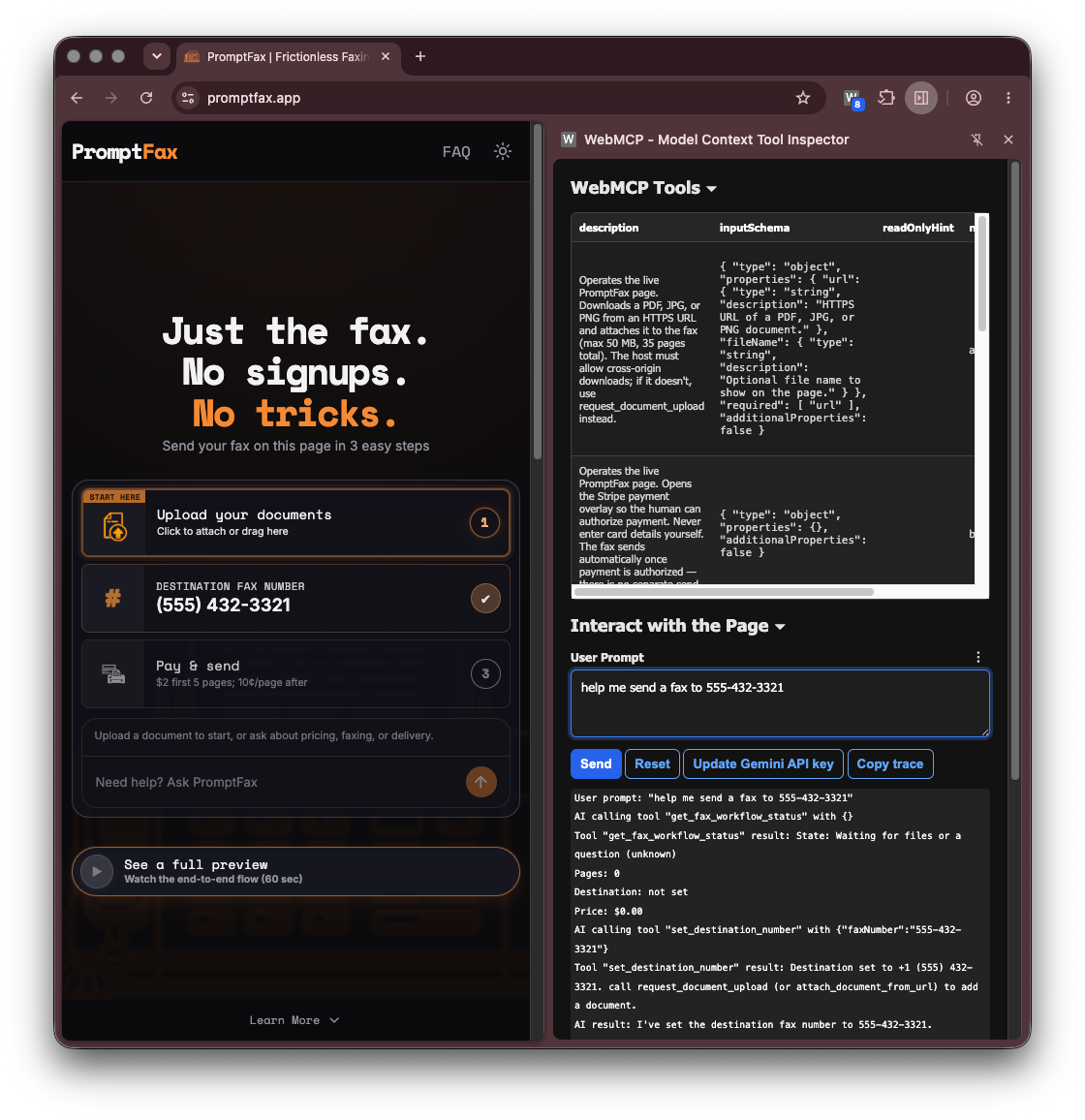
I noticed the LLM would sometimes hallucinate a number. For now, I will continue requiring human verification of fields before sending.
WebMCP — structured website actions for a browser-side agent | |
Primary user interface: the website plus a browser-associated agent (still TBD) | |
Pros | Cons |
|---|---|
|
|
Direct API Exposure → GPTs
There is one other mechanism - exposing an API directly and hoping the LLM can figure out how to use it. Most leading LLMs have some sort of code generation capability that could navigate an OpenAPI definition and then use curl or some Python code to interact with the app via an API. However, authentication makes the interaction more complicated since some back-and-forth is needed. The LLM would need some guidance on how to deal with the various interactions. That could be defined in a SKILL.md, but that is one more thing that needs to be installed.
None of this is a big deal for developers who do this sort of thing all the time, but it is not generally consumer-friendly—particularly in my case where use is designed to be infrequent. In addition, one of the drivers behind MCP was to solve the challenges of direct API exposure in an agent-friendly way. This problem is already addressed there.
I initially dismissed the idea of exposing another API. Then I discovered OpenAI’s “no digital services commerce” terms would not let me publicly publish my plugin. So then I looked into Custom GPTs as an alternative. Custom GPTs are basically a direct API exposure approach. Unlike Plugins, custom GPTs are easy to self-publish in ChatGPT’s public GPT directory. ChatGPT’s custom GPTs just use an OpenAPI definition, a static API key, and LLM instructions.
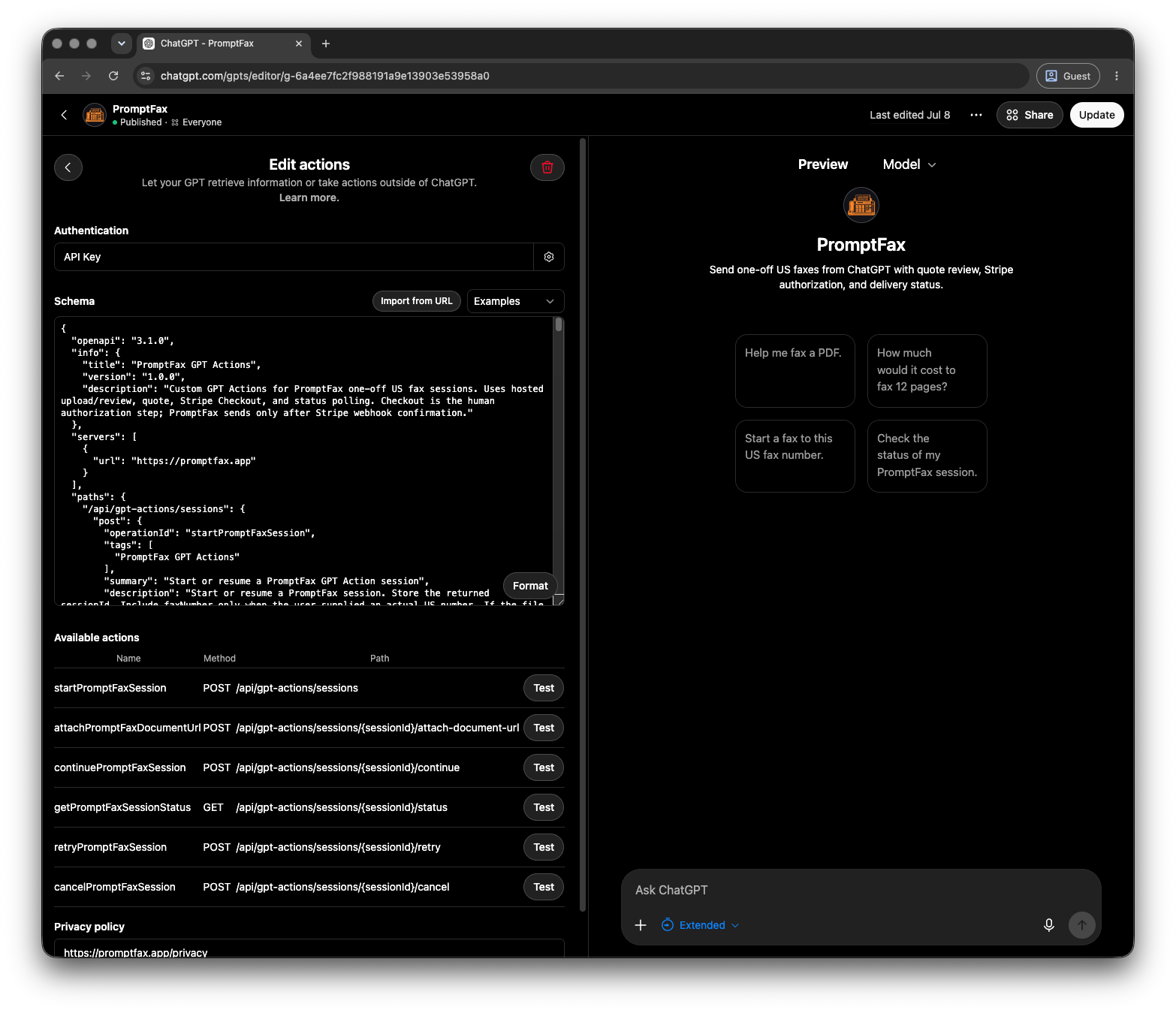
Custom GPT Implementation
This was another case of adapting the endpoints I made for the MCP server and swapping out OAuth for a static API key. You make an OpenAPI JSON file (example here) to describe the endpoints and set up a basic key mechanism for authentication. Custom GPTs also come with Instructions that essentially act like your system prompt. I had to do some prompt engineering to improve the flow, but nothing major.
The MCP App / Plugin is definitely a better user experience, but this custom GPT can be used by anyone with one click: https://chatgpt.com/g/g-6a4ee7fc2f988191a9e13903e53958a0-promptfax
Custom GPT — LLM calls an OpenAPI-described API | |
Primary user interface: ChatGPT prompts | |
Pros | Cons |
|---|---|
|
|
Conclusions
Let’s recap:
- In-app LLM – trying to skip making a UI was a bad idea; with a good UI this isn’t really needed
- Computer use – there is nothing special to be done here, so don’t worry about it if your UI is easy
- Browser use – beef up your DOM with more info, but you should do that anyway for accessibility and GEO
- MCP server – this is a critical starting point and worth doing even if it is really more developer-oriented
- MCP apps – immature, but the right concept for an app like PromptFax
- WebMCP – I like the concept, but it looks like we need to wait months to see exactly how this will be implemented
- Custom GPT – only for ChatGPT, but this is the quickest way to publish something that works with an LLM, even if it has limited capabilities
I started this project because I was frustrated that I couldn’t find an LLM app to quickly send a fax for me. I assumed this would be easy. It was not. I did make progress on making this easier to do, but not to the level I would like yet. Unfortunately, none of these offer a seamless user experience in my situation today.
I did not discuss challenges related to file uploads and payments, which make my LLM-directed flows challenging. I look forward to experimenting with agentic commerce solutions such as ACP and MPP when those are more widely implemented. I’ll save this topic for a follow-up post.
I was also focused more on the “Work” persona. There are more options for the “Developer” persona. I need to publish a developer skill even if this is not at all designed for development.
So, none of this is great, but certainly there must be imminent improvements coming quickly? Then again, businesses are still requiring people to use a 30-year-old image transmission technology designed for landlines, so maybe I should adjust my expectations.